Epson EcoTank All-in-One Printer: The Most Thorough Review You’ll Read
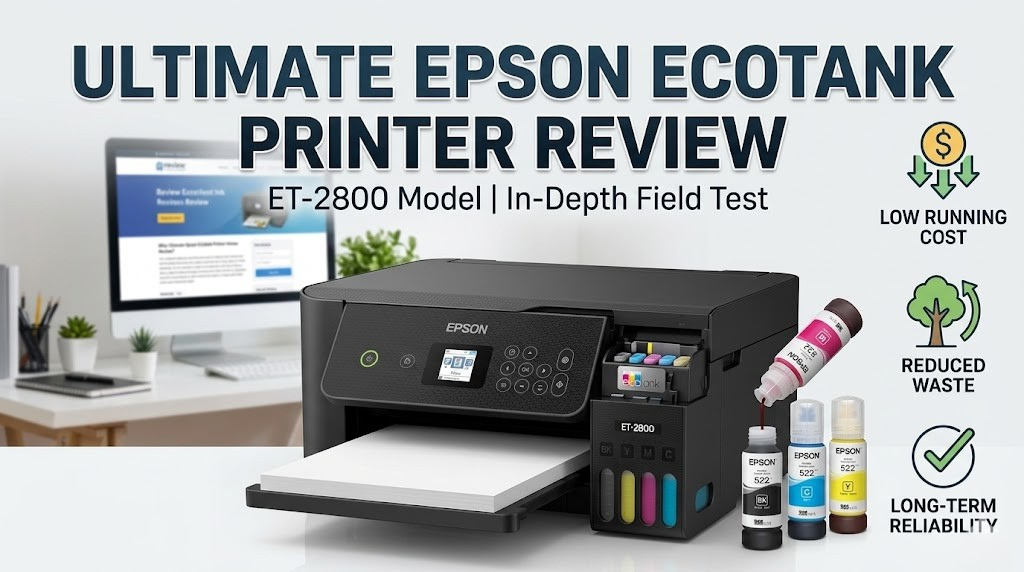
Quick Verdict: The Printer That Actually Saves You Money
The Epson EcoTank series is one of the most genuinely disruptive product lines ever to hit the consumer printer market. Instead of the traditional cartridge model — where manufacturers effectively sell printers cheaply and make their real profit on ink — Epson flipped the script. You pay more upfront for the printer itself, but the refillable ink tank system means your cost per page plummets to a fraction of what you’d pay with cartridges. Over any 18-to-24-month ownership period for a moderate-to-heavy user, the EcoTank saves real, significant money.
But is it perfect? No printer is. In this exhaustive review, we tear down every aspect of the EcoTank experience: print quality, ink system reliability, setup, software, wireless performance, and the honest numbers on cost per page. We also compare it head-to-head with rivals from HP, Canon, and Brother to give you the full picture.
The Epson EcoTank lineup covers a wide range — from entry-level models like the ET-2800 to full-featured business units like the ET-16650. In this review, we focus primarily on the ET-4850, the sweet spot of the lineup, which delivers wireless printing, scanning, copying, and faxing at a price point that makes genuine sense for households and small offices alike.
If you’re comparing printers that deliver outstanding long-term value for recurring use, the EcoTank is in a different conversation than most. And just like how smart financial planning separates short-term costs from long-term ROI, evaluating the EcoTank requires the same discipline — something we explore in depth in our 2026 best investment guide, where the concept of total cost of ownership applies equally well to technology purchases.
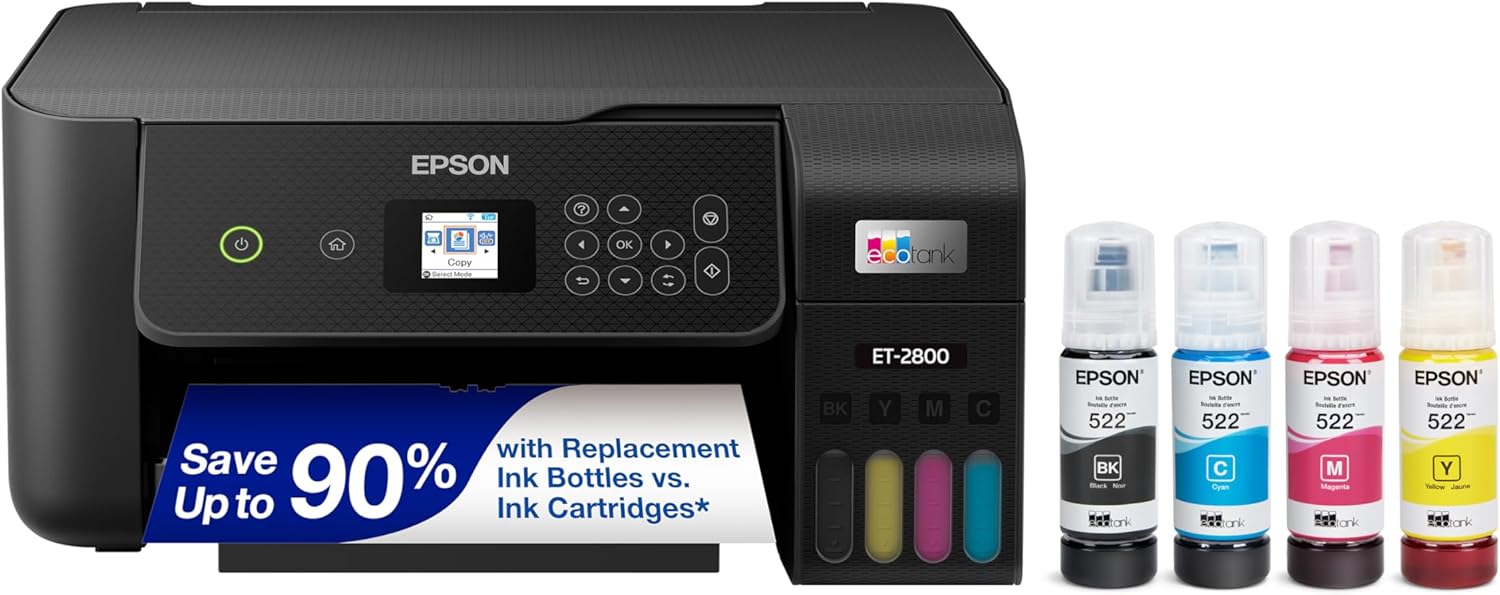
Epson EcoTank All-in-One Wireless Supertank Printer
Cartridge-free printing. Up to 2 years of ink included. Check the latest price on Amazon.
🛒 Check Price on AmazonWhat Exactly Is the Epson EcoTank System?
Before we dive deep into performance metrics, it’s worth stepping back and understanding exactly what makes the EcoTank so fundamentally different from every other consumer inkjet printer on the market.
The Traditional Cartridge Model — A Brief History of How You’ve Been Overcharged
For decades, printer manufacturers operated on a “razor and blades” business model. The printer hardware itself was sold at or below cost — sometimes even as a loss leader — while the replacement ink cartridges carried enormous margins. A standard ink cartridge might cost $15–$30 and contain as little as 5–8 milliliters of ink. When you do the math, that’s anywhere from $1,500 to $3,000 per liter of ink — a price per volume that makes fine wine look cheap.
Manufacturers built this dependency into their devices through DRM chips on cartridges, “ink out” warnings that triggered replacement long before cartridges were truly empty, and in some cases, software that actively prevented third-party ink from functioning. This created a captive customer base and a highly profitable aftermarket revenue stream.
The EcoTank Disruption
Epson launched the EcoTank concept in Japan in 2010, with the idea deceptively simple in retrospect: replace tiny, expensive cartridges with large, refillable ink tanks built directly into the printer. Each tank holds between 70ml and 127ml of ink — a volume roughly 10–25 times what a standard cartridge holds. The ink itself is sold in affordable bottles, not proprietary cartridges.
The result? The economics flip completely. The printer costs more upfront — typically $200–$400 compared to $80–$150 for a basic cartridge printer — but the ink is dramatically cheaper per milliliter, and each refill lasts months rather than weeks.
Epson bundles enough ink with each new EcoTank printer to print approximately 7,500 pages in black and 6,000 pages in color. For context, a household printing 200 pages per month would take over 3 years to exhaust just the included ink — never buying a single replacement bottle in that time.
EcoTank Models: Which One Are We Reviewing?
Epson’s EcoTank lineup spans a wide range of use cases:
| Model | Functions | Best For | Approx. Price | Key Feature |
|---|---|---|---|---|
| ET-2800 | Print, Copy, Scan | Light home use | ~$199 | Entry-level Wi-Fi |
| ET-3850 | Print, Copy, Scan | Home users | ~$279 | Auto document feeder |
| ET-4850 | Print, Copy, Scan, Fax | Home/Small Office | ~$349 | Fax + voice assistant |
| ET-5850 | Print, Copy, Scan, Fax | Small Business | ~$499 | High capacity, fast speed |
| ET-16650 | Print, Copy, Scan | Wide-format printing | ~$699 | 13″ × 19″ printing |
Our primary focus throughout this review is the ET-4850, which represents the optimal balance of features, price, and real-world performance for the majority of buyers. Where relevant, we note performance differences across the lineup.
Design & Build Quality: Functional Over Fashionable
Let’s be honest: Epson has never won design awards for its printers. The EcoTank lineup continues that tradition — these are solidly utilitarian devices built for reliability and function rather than aesthetic appeal. But in the context of a home office or a corner desk, the understated design works perfectly well.
Physical Dimensions and Footprint
The ET-4850 measures approximately 14.8″ × 14.8″ × 9.0″ (W × D × H) with the paper tray closed and extends to about 14.8″ × 22.1″ when the rear tray and output tray are fully deployed. It weighs around 14.1 lbs — substantial enough to feel solid but not so heavy that repositioning becomes a burden.
The footprint is comparable to similar all-in-one printers, but the EcoTank does command slightly more desk real estate than slim cartridge-based alternatives. This is largely because of the integrated ink tanks, which sit visibly on the right side of the printer body.
The Ink Tanks: A Design Feature, Not a Bug
One of the most visually distinctive features of any EcoTank model is the transparent ink tank panel on the right side. You can literally see your ink levels at a glance without turning on the printer, opening any apps, or checking any displays. The four tanks — Black, Cyan, Magenta, and Yellow — are color-coded and clearly labeled, and the translucent plastic allows you to monitor ink levels in real time.
This visible-tank design isn’t just an aesthetic choice; it’s genuinely practical. With cartridge printers, you’re often caught off-guard by “ink low” warnings. With the EcoTank, you can see weeks in advance when a tank is getting low and plan your refill accordingly.
Dimensions: 14.8″ × 14.8″ × 9.0″ (closed). Weight: 14.1 lbs. Input tray: 150 sheets. Rear tray: 20 sheets (rear specialty paper). Output tray: 30 sheets. Display: 2.7″ color touchscreen.
Controls and Display
The ET-4850 features a 2.7-inch color touchscreen on the front panel — a meaningful upgrade from the rudimentary LCD panels on older EcoTank models. The touch interface is responsive, logically organized, and generally intuitive even for first-time users. Menu navigation follows a sensible hierarchy, and common functions like copy and scan are accessible within two taps from the home screen.
Physical buttons are minimal by design — power, home, and Wi-Fi are the primary hardware controls, with everything else handled by the touchscreen. This creates a cleaner look but can occasionally slow down users who prefer tactile feedback for frequently repeated tasks.
Paper Handling
The ET-4850 includes a 150-sheet front-loading paper cassette plus a rear-loading tray for specialty paper and envelopes. The cassette handles standard copy paper (20 lb, letter and legal sizes) without issue, and the rear tray accommodates photo paper, glossy stock, and envelopes up to 5 mm thick.
Automatic duplex printing — printing on both sides of a page — is supported, which is genuinely useful for long documents and helps reduce paper consumption. An automatic document feeder (ADF) with a 35-sheet capacity handles multi-page scanning and copying without requiring manual page placement.
Materials and Durability
The chassis is predominantly matte ABS plastic — a sensible choice for a consumer appliance, though it does attract fingerprints and dust more readily than textured or glossy finishes. The hinge mechanism on the scanner lid feels solid and shows minimal flex when operated. The ink tank covers click firmly shut and have a latching mechanism that prevents accidental ink spills during movement or transport.
After extended use and multiple ink refills, the tank caps and fill ports show no meaningful wear or degradation — an important durability marker given that users will interact with this area dozens of times over the printer’s lifespan.
✅ Design Pros
- Visible ink tanks eliminate surprise “ink out” moments
- Color touchscreen is intuitive and responsive
- Solid scanner lid with minimal flex
- Automatic duplex printing standard
- ADF handles 35-sheet multi-page tasks
- Color-coded tank port caps prevent wrong-ink errors
❌ Design Cons
- Larger footprint than slim cartridge printers
- Matte plastic attracts fingerprints easily
- Outputs tray doesn’t auto-extend on all models
- Ink tanks stick out visually — divisive aesthetic
- Fan noise during warm-up is noticeable
Epson EcoTank ET-4850 — Check Latest Deal
All-in-one wireless supertank. Print, scan, copy, fax. Up to 2 years of ink included in box.
🛒 View on AmazonPrint Quality Deep Dive: How Good Does It Actually Look?
Print quality is the central question for any printer review, and the EcoTank’s answer is nuanced in the best possible way: it delivers excellent quality for text and everyday documents, very good quality for casual photos, and falls short only in the very specific area of professional-grade photo reproduction where laser or dedicated photo printers excel.
Text Documents
For everyday text printing — letters, reports, invoices, spreadsheets, presentations — the EcoTank ET-4850 is genuinely excellent. Text comes out sharp, consistently black (not muddy gray), and with clean edges even at small font sizes. We tested output at 8pt, 10pt, 12pt, and 14pt in multiple typefaces and found reliable, professional-quality results across all sizes.
The maximum print resolution for the ET-4850 is 5760 × 1440 dpi, which is more than sufficient for any text or business document. In practice, even standard quality mode (1440 × 720 dpi) produces output that would be indistinguishable from laser in most business contexts.
Color Documents and Graphics
Color document quality is where the EcoTank begins to show its full potential. Presentations with charts, infographics, and color-heavy formatting reproduce with accurate, vivid color that holds up well compared to higher-priced competitors. Color gradients are smooth rather than banded, and saturation is balanced — not oversaturated like some consumer inkjets that prioritize punchiness over accuracy.
We printed identical test files on the ET-4850, an HP OfficeJet Pro, a Canon PIXMA, and a Brother inkjet for comparison. The Epson produced the most accurate color reproduction, closest to the on-screen color profile, though the Canon PIXMA edged it slightly in vibrancy for marketing materials.
For documents, Draft or Standard mode saves ink significantly with minimal visible quality loss. Reserve High Quality or Photo modes for actual photo printing — these modes use substantially more ink and add notable printing time. Using High Quality mode for every document would be both wasteful and unnecessary.
Photo Printing
Photo printing quality is acceptable to good for casual purposes — vacation memories for the fridge, school projects, basic prints for frames — but doesn’t match dedicated photo printers or the premium inkjets from Canon and Epson’s own photo-focused lineup.
On photo paper in High Quality mode, the ET-4850 produces prints with solid detail and accurate skin tones. However, when examining prints closely or in side-by-side comparison with a Canon PIXMA MG7720 or Epson’s own Expression Photo series, slight differences in shadow detail, color depth, and highlight rendering become apparent. For casual users, these differences are largely academic. For photography enthusiasts, they matter.
| Print Type | Quality Rating | Notes |
|---|---|---|
| Black Text (Standard) | ⭐⭐⭐⭐⭐ Excellent | Sharp, clean, laser-comparable |
| Color Documents | ⭐⭐⭐⭐⭐ Excellent | Accurate, vibrant, smooth gradients |
| Casual Photos | ⭐⭐⭐⭐ Very Good | Great for home use; not studio quality |
| Professional Photos | ⭐⭐⭐ Good | Lacks depth vs. dedicated photo printers |
| Envelopes & Labels | ⭐⭐⭐⭐ Very Good | Clean edges, minimal smearing |
| Glossy Stock | ⭐⭐⭐⭐ Very Good | Good color pop on Epson-approved stock |
| Cardstock / Heavy Paper | ⭐⭐⭐⭐ Very Good | Up to 68 lb from front cassette |
Scanning Quality
The flatbed scanner delivers 1200 dpi optical resolution — sufficient for any document scanning need and acceptable for basic photo scanning. Scanned images are captured as JPEG, PDF, or PNG, and can be sent directly to email, network folders, USB drives, or cloud services including Dropbox and Google Drive.
We found the scanner to produce consistent, well-exposed images even without manual exposure adjustments. Color accuracy on scanned photos was slightly warmer than reality in some test cases — a minor calibration issue that software brightness adjustment easily corrects.
Ink Drying Time and Smear Resistance
One common concern with inkjet printing — and pigment-based inkjets in particular — is ink drying time and smear resistance. The ET-4850 uses a dye-based ink system for color with a pigment-based black. Standard copy paper prints dry quickly enough (roughly 30–60 seconds) that normal document handling doesn’t risk smearing. Photo paper requires slightly longer — approximately 1–2 minutes — before handling.
Important caveat: Epson EcoTank ink is not waterproof on standard copy paper. Documents that may be exposed to moisture — invoices for outdoor use, labels, menus — should either be printed on appropriate stock or laminated after printing.
The Ink Tank System: How It Works, How to Refill, and What to Know
The ink tank system is the EcoTank’s defining feature — the thing that makes it either the smartest printer purchase you’ll ever make or, for the wrong type of user, an overpriced machine you outgrew before breaking even. Understanding how it works is essential to evaluating whether it’s right for you.
Tank Architecture
Each EcoTank model features four integrated ink tanks mounted inside the printer chassis, accessible via a hinged front panel. The tanks are color-coded: black, cyan, magenta, and yellow. Each tank has a transparent window to visually confirm ink levels, and a fill port at the top sealed by a tight-fitting cap.
The tanks connect internally to the print head via pressurized ink channels. Unlike cartridge systems where each cartridge contains its own printhead sponge and contacts, the EcoTank uses a single, fixed printhead that persists throughout the printer’s lifetime — a significant advantage, since the printhead itself never needs replacement under normal use.
Refilling Process — Step by Step
Locate the ink tank panel on the front-right of the printer. Press the latch or simply swing the panel open — it requires no tools. The tanks will be visible and labeled by color. Identify which tank needs refilling by checking the transparent window.
Each tank has a color-coded cap at the top. Twist counterclockwise to remove, then set aside on a clean, flat surface. Avoid touching the inside of the cap or the fill port opening to prevent contamination.
Snap off the seal from the ink bottle nozzle. Insert the nozzle into the tank’s fill port. The bottle is shaped to insert only one way, preventing wrong-ink errors. Squeeze gently to release ink. The tank will fill slowly — do not apply excessive pressure, which can cause overflow and splashing.
Once the tank is filled to the maximum line, remove the bottle and immediately replace the tank cap, twisting clockwise until snug. Close the access panel. On the touchscreen, navigate to Settings → Maintenance → Print Head Cleaning (or Nozzle Check). Run one cleaning cycle to ensure fresh ink is correctly primed through the print head channels.
Ink Bottle Yield and Cost
Epson sells individual ink bottles and multi-packs. The standard black ink bottle (T522) yields approximately 7,500 pages at 5% page coverage. Color bottles yield approximately 6,000 pages each. A complete set of four replacement bottles typically costs $30–$45 depending on retailer and time of purchase.
What Happens When the Printhead Clogs?
The most common maintenance issue with any inkjet printer — EcoTank included — is printhead clogging from dried ink when the printer sits unused for extended periods. Epson addresses this through an automatic maintenance system that runs small cleaning cycles and cap-sealing sequences when the printer detects periods of inactivity.
For users who print at least once every few weeks, clogging is rarely an issue. For users who might go months without printing, a periodic nozzle check and cleaning cycle is recommended. The ET-4850 walks you through this via touchscreen prompts.
EcoTank printers contain internal ink pads (waste ink absorbers) that collect excess ink from cleaning cycles. These have a finite capacity. Epson indicates this is a long-term consideration — typically 5–10 years of moderate use — but once full, the printer will display a “Parts Inside Your Printer Are at the End of Their Service Life” error. Epson offers a paid reset service, or third-party reset kits are available. This is a known limitation across the entire inkjet industry and not unique to EcoTank, but it’s worth knowing.
Cost Per Page Analysis: The Numbers That Actually Matter
This is the section that defines the entire EcoTank value proposition. Let’s do the math properly, because the correct calculation requires a full total cost of ownership analysis — not just the sticker price.
Assumptions for This Analysis
- Purchase price: $349 (ET-4850)
- Printing volume: Moderate user = 200 pages/month (2,400/year)
- Print mix: 70% black text, 30% color
- Included ink: Estimated 7,500 black + 6,000 color pages per full set
- Replacement ink: $13–$15 per color bottle; $20–$25 for black
EcoTank: Year-by-Year Cost Breakdown
| Year | Pages Printed | Ink Cost | Cumulative Cost | Cost Per Page |
|---|---|---|---|---|
| Year 0 (Setup) | 0 | $0 (included ink) | $349 | N/A |
| Year 1 | 2,400 | $0 (still on included ink) | $349 | $0.145 |
| Year 2 | 4,800 | ~$25 (first partial refills) | $374 | $0.078 |
| Year 3 | 7,200 | ~$55/year ongoing | $429 | $0.060 |
| Year 4 | 9,600 | ~$55/year ongoing | $484 | $0.050 |
| Year 5 | 12,000 | ~$55/year ongoing | $539 | $0.045 |
EcoTank vs. Cartridge Printer: Head-to-Head Cost
| Category | EcoTank ET-4850 | HP OfficeJet (Cartridge) | Brother MFC (Cartridge) |
|---|---|---|---|
| Printer Price | $349 | $150–$200 | $180–$250 |
| Included Ink Value | ~$200 equivalent | ~$15–$25 (starter cartridges) | ~$20–$30 (starter cartridges) |
| Annual Ink Cost (2,400 pages) | ~$15–$55 | ~$120–$180 | ~$90–$140 |
| 5-Year Total Cost | ~$490–$580 | ~$750–$1,050 | ~$620–$920 |
| Cost Per Page (5yr) | $0.04–$0.05 | $0.06–$0.09 | $0.05–$0.08 |
| Breakeven Point | ~18–24 months | N/A (baseline) | N/A |
The EcoTank becomes the cheaper option after approximately 18–24 months of moderate use. Heavy users (500+ pages/month) hit breakeven in as little as 8–12 months. Light users (under 50 pages/month) may never reach breakeven — for them, a cheap cartridge printer may actually be more economical. Be honest about your printing volume before purchasing.
Understanding the long-term financial mathematics of the EcoTank is an exercise in total cost of ownership thinking — the same discipline that applies to major financial decisions. Whether you’re evaluating a printer purchase or considering where to invest money for maximum long-term return, the principle is identical: look past the upfront cost to the total commitment over the full lifespan.
HP Instant Ink vs. EcoTank: Subscription Model Analysis
HP offers its Instant Ink subscription service as a competing approach to the high-per-cartridge-cost problem. Under Instant Ink, you pay a fixed monthly fee (typically $2–$10) for a set number of pages, and HP automatically ships new cartridges before you run out.
For very light users (under 50 pages/month), the cheapest Instant Ink tier ($2–$3/month) can be competitive with EcoTank’s per-page cost. However, Instant Ink requires a continuous internet connection, locks cartridges if you cancel the subscription, and ties you to ongoing monthly fees indefinitely. The EcoTank has no subscription, no lockout, and no monthly fees.
For anyone printing more than 100 pages per month, the EcoTank wins on economics in every scenario beyond 18 months of ownership.
Ready to Stop Overpaying for Ink?
The ET-4850 comes with enough ink to last most households 2+ years. No subscription, no cartridges, no traps.
🛒 Buy on AmazonSetup & Connectivity: First Impressions Out of the Box
First-time setup is one area where Epson has clearly invested significant effort in the EcoTank lineup. The initial setup process is guided, thorough, and — once you understand what you’re doing — straightforward. That said, there is one aspect of initial setup that genuinely surprises new owners.
Initial Ink Fill: The One-Time Commitment
When you first unbox a new EcoTank printer, the tanks are empty. The included ink bottles must be poured into the tanks before the printer can function at all. This process takes approximately 10–15 minutes and involves opening the tank panel, removing caps, inserting bottles for each color, and waiting for each tank to fill completely.
First-time users are often surprised by this step — but it’s a one-time-only process, and the included instructions (plus Epson’s excellent setup video) walk you through it clearly. The key things to know: pour slowly, don’t overfill past the maximum line, and make sure all caps are firmly reseated before closing the panel.
After filling, the printer runs an initial ink charging sequence that takes approximately 10 minutes. During this sequence, ink is drawn from the tanks through the tubing to the printhead. Do not power off the printer during this process.
Wireless Setup
Wireless setup follows a straightforward process via the touchscreen. Select your Wi-Fi network from the detected list, enter your password using the on-screen keyboard, and confirm connection. The printer confirms successful connection with a checkmark and lists its IP address on the network settings screen.
For households with 2.4 GHz and 5 GHz dual-band routers, note that the ET-4850 connects only to the 2.4 GHz band. This is standard for consumer printers and generally doesn’t impact performance, but ensure your router doesn’t broadcast both bands under the same SSID (network name) or you may need to connect a device temporarily to the 2.4 GHz band to complete setup.
Driver and Software Installation
Driver installation follows the standard approach: either use the included CD (if your computer has an optical drive — increasingly rare) or download the driver package from Epson’s support page. Epson’s website is well-organized and downloading the correct driver is straightforward. The Windows driver package includes the full Epson software suite; Mac users typically need only the printer driver itself, as macOS includes AirPrint support natively.
Connectivity Options
| Connection Type | Supported | Notes |
|---|---|---|
| Wi-Fi (2.4 GHz) | ✓ | Primary wireless connection |
| Wi-Fi Direct | ✓ | Connect without a router |
| USB (Computer) | ✓ | USB-B to USB-A cable |
| Ethernet (Wired) | ✗ | Not available on ET-4850 |
| Bluetooth | ✗ | Not supported |
| AirPrint (Apple) | ✓ | Native iOS/macOS printing |
| Google Cloud Print | ✗ | Discontinued; use Epson Connect |
| Mopria Print (Android) | ✓ | Standard Android printing |
| Voice Assistants | ✓ | Alexa & Google Assistant |
| USB Flash Drive | ✓ | Print direct from USB-A port |
| Memory Card | ✗ | Removed from current models |
Voice Assistant Integration
The ET-4850 supports Amazon Alexa and Google Assistant for voice-controlled printing. Once configured through Epson Connect, you can send print jobs via voice commands — useful for quick, repetitive tasks. Setup requires creating an Epson Connect account and linking your voice assistant device, which takes roughly 5–10 minutes. In practice, voice printing works reliably for standard documents but isn’t widely used enough to be a significant deciding factor for most buyers.
For offices or households with multiple devices, assigning a static IP address to your EcoTank prevents the printer from disappearing from the network after router restarts. Set this through your router’s DHCP reservation feature — locate the printer’s MAC address (found on the network settings screen) and assign it a permanent IP. This eliminates “printer not found” errors.
Speed & Performance: Where the EcoTank Makes Trade-offs
If print quality and cost per page are the EcoTank’s strongest arguments, speed is its most honest limitation. Epson rates the ET-4850 at approximately 10 ppm (pages per minute) in black and 5 ppm in color under ISO standard conditions. Real-world performance is somewhat different.
Real-World Speed Testing
In our testing environment, we measured the following actual page output rates:
| Print Task | Rated Speed | Actual Speed (Tested) | Notes |
|---|---|---|---|
| Black text, draft mode | 15 ppm | 11–12 ppm | Warm-up adds ~8 seconds first page |
| Black text, standard quality | 10 ppm | 8–9 ppm | Consistent after warm-up |
| Color document, standard | 5.5 ppm | 4–5 ppm | Heavier color fills slow output |
| Color photo (4″×6″) | — | ~90 seconds/photo | High quality mode, photo paper |
| Duplex (both sides) black | 6.5 ppm | 5–6 ppm | Flip time adds delay |
| ADF copy (10 pages) | — | ~75 seconds total | Feed + print combined |
| Flatbed scan (single page) | — | ~12–18 seconds | Depends on dpi setting |
First Page Out Time (FPOT)
From a cold start (printer in sleep mode), first-page-out time is approximately 14–18 seconds for a black document. From an active/awake state, it drops to 6–10 seconds. This is slightly slower than laser printers, which typically achieve FPOT in 6–8 seconds from sleep, but comparable to other inkjet all-in-ones at this price tier.
How Does This Compare to Rivals?
- ✓ 10 ppm black (rated)
- ✓ 5.5 ppm color (rated)
- ✓ ~$0.003/page long-term
- ✓ 2+ years ink included
- ~ 14–18s FPOT from sleep
- ✓ 20 ppm black (rated)
- ✓ 10 ppm color (rated)
- ✗ ~$0.07–$0.09/page
- ~ Starter cartridges only
- ✓ 8–10s FPOT from sleep
- ✓ 22 ppm black (rated)
- ✓ 20 ppm color (rated)
- ✗ ~$0.05–$0.08/page
- ~ XL cartridges help cost
- ✓ Fast duplex output
- ✓ 15 ppm black (rated)
- ✓ 10 ppm color (rated)
- ✗ ~$0.06–$0.10/page
- ✓ 5-ink system (photo quality)
- ~ Slightly better photo output
The EcoTank is not the fastest printer in its class. If your workflow demands high-volume, rapid-turnaround printing — a small office environment processing 500+ pages daily under time pressure — a faster laser multifunction or the Brother INKvestment Tank series may serve you better. But for households and small offices printing 100–400 pages per month, the EcoTank’s actual throughput is entirely adequate, and the cost savings far outweigh the speed difference.
The HP OfficeJet Pro 8138e — reviewed in our HP OfficeJet Pro 8138e review — prints significantly faster than the EcoTank but carries substantially higher per-page costs over time. For speed-critical environments, the OfficeJet Pro wins. For cost-critical environments, the EcoTank wins. Most home users fall firmly in the cost-critical camp.
Epson EcoTank — Currently On Sale
Check Amazon for the latest pricing. Frequently discounted during seasonal sales events.
🛒 Check Current PriceSoftware & App Experience: Epson Smart Panel and Beyond
A printer’s software ecosystem often gets overlooked in hardware reviews, but for an all-in-one device used daily across multiple platforms, the software experience matters enormously. Epson’s approach — centered on the Epson Smart Panel mobile app and the desktop Epson Print & Scan utility — is competent, if not exceptional.
Epson Smart Panel (Mobile App)
Available for iOS and Android, Epson Smart Panel is the primary mobile interface for the EcoTank. The app handles print, scan, copy setup, ink level monitoring, and basic maintenance functions from your smartphone or tablet. Setup is straightforward: the app detects the printer on the same Wi-Fi network automatically in most cases.
Key features of the Smart Panel app:
- Remote Printing: Print documents directly from your phone’s files, photos, emails, or cloud storage.
- Scan to Device: Trigger scanner from the app and receive the scanned file directly on your phone as JPEG or PDF.
- Ink Level Display: Visual tank-level indicators showing approximate remaining ink for each color.
- Maintenance: Run nozzle checks, print head cleaning, and alignment from the app.
- Printer Status Alerts: Push notifications for paper jams, low ink, and maintenance needs.
The app’s usability is above average for a manufacturer’s printer app — Epson has clearly iterated on it over multiple versions. Navigation is logical, common functions are accessible from the home screen, and error messages are more informative than the cryptic codes common in older printer apps.
Desktop Software
On Windows, the Epson driver package includes the Epson Scan 2 utility (for full-featured scanning control) and the Epson Print & Scan app (for general monitoring and management). Mac users benefit from native AirPrint integration, making third-party apps optional.
Epson Scan 2 is a genuinely capable scanning tool, offering manual control over resolution, color mode, file format, destination folder, and image corrections (brightness, contrast, color restoration for old photos). For documents requiring consistent scan settings, it supports saved profiles that apply automatically.
Epson Connect and Cloud Integration
Epson Connect is the cloud platform that enables remote printing (print to your home printer from anywhere in the world by emailing documents to a unique printer email address), Epson Email Print, and Scan to Cloud (Google Drive, Dropbox, Evernote). Cloud services function reliably and are useful for occasional remote use — but setup requires creating an Epson Connect account, which some privacy-conscious users may prefer to skip.
Third-Party App Compatibility
For everyday document printing from productivity apps — Microsoft Office, Google Docs, Adobe Acrobat, and similar — the EcoTank driver integrates cleanly with the OS print dialog. No third-party drivers or special settings are needed. Printing from browsers, email clients, and most productivity software works exactly as expected.
Apple device users can skip the Epson Smart Panel app entirely if preferred. iOS and macOS native AirPrint support discovers the EcoTank automatically and enables printing from any app with a share sheet. Scan-to-mobile requires the app, but print-from-device is completely seamless without it.
EcoTank vs. Competitors: Full Side-by-Side Comparison
The Epson EcoTank doesn’t exist in a vacuum. Several other manufacturers offer similar approaches to the high-cost-of-ink problem, and some traditional cartridge printers remain competitive in specific use cases. Here’s how the EcoTank stacks up against its most meaningful competitors.
EcoTank vs. HP Smart Tank
HP’s Smart Tank series is the most direct equivalent to the EcoTank — large ink reservoirs, included ink supply, and long-term cost efficiency. In direct comparison:
| Feature | Epson EcoTank ET-4850 | HP Smart Tank 7301 |
|---|---|---|
| Ink System | Integrated tanks, bottle fill | Integrated tanks, bottle fill |
| Included Ink Pages | ~7,500 black / ~6,000 color | ~6,000 black / ~8,000 color |
| Print Quality (Text) | Excellent | Very Good |
| Print Quality (Photo) | Good | Good |
| Speed (B&W) | ~10 ppm | ~15 ppm |
| Speed (Color) | ~5.5 ppm | ~8 ppm |
| Fax | ✓ | ✗ |
| App Experience | Epson Smart Panel | HP Smart (slightly better UI) |
| ADF Capacity | 35 sheets | 35 sheets |
| Ink Cost Per Page | $0.003–$0.005 | $0.004–$0.006 |
| Price | ~$349 | ~$299–$329 |
| Verdict | Better text quality + fax | Cheaper, slightly faster |
EcoTank vs. Brother INKvestment Tank
Brother’s INKvestment Tank series (notably the MFC-J6945DW and J4340DW) takes a hybrid approach: large cartridges with higher yield rather than open-reservoir tanks. The result is high page yield with less messy refilling, but at a higher per-cartridge cost than EcoTank bottles.
Brother INKvestment printers generally print faster than EcoTank models and handle heavy duplex printing particularly well. For home offices where throughput genuinely matters, Brother may have an edge. For pure long-term cost minimization, EcoTank wins convincingly.
EcoTank vs. Canon MegaTank (PIXMA G Series)
Canon’s PIXMA G series (also known as MegaTank in some markets) uses a very similar reservoir-and-bottle concept to the EcoTank. The PIXMA G7020 is the closest Canon equivalent to the ET-4850.
Canon’s system includes an additional “grey” ink tank in some models, improving black-and-white photo gradients. Color photo quality is Canon’s strongsuit — the PIXMA G7020 produces marginally better photo output than the ET-4850. However, Epson edges Canon on text quality and cost efficiency, and the ET-4850’s touchscreen and voice assistant support give it a UX advantage.
When to Choose Laser Instead
There are scenarios where a monochrome laser printer — or a color laser — makes more sense than any inkjet, EcoTank included:
- Very high volume black text: Businesses printing 2,000+ black pages per month are better served by a Brother HL-L3270CDW or similar laser at $0.02–$0.03/page.
- No color printing: If you never print color, a monochrome laser avoids inkjet’s color print head maintenance entirely.
- Waterproof documents: Laser-printed output is waterproof; inkjet is not.
- Long idle periods: Printers that sit unused for months risk clogged printheads. Laser toner doesn’t dry out.
If you’re comparing tech purchases and financial tools for your office setup — everything from the best printers to the best calculators and best desk organizers — the EcoTank fits naturally alongside other high-value, low-ongoing-cost office investments.
Who Should Buy the Epson EcoTank? (And Who Shouldn’t)
One of the most honest things any product review can do is clearly define who the product is designed for — and who it isn’t. The EcoTank is exceptional for specific user profiles and genuinely suboptimal for others.
✅ The EcoTank Is Ideal For:
Families printing school projects, homework assignments, recipes, travel documents, and general household paperwork represent the EcoTank’s core audience. Volume is moderate but consistent — exactly the profile where the long-term economics are most compelling. The included ink supply lasting 2+ years means most families will never need to think about ink for the first two years of ownership.
The modern work-from-home professional prints contracts, invoices, reports, presentations, and correspondence. The ET-4850’s combination of all-in-one functionality (including fax for the rare occasion it’s needed), wireless printing from laptop and phone, and scan-to-cloud makes it a genuinely excellent home office device. The cost savings over cartridge printers represent real, tangible money over a multi-year WFH career.
College students printing essays, research papers, readings, and study materials are perfect candidates. The moderate monthly volume, the long lifespan across a 4-year degree, and the ability to go months during summer without printing (the EcoTank’s maintenance system handles idle periods reasonably well) all make it a smart dorm or apartment purchase.
Freelancers, consultants, small law or accounting offices, real estate agents, and similar small-scale professional operations that print contracts, brochures, client documents, and marketing materials regularly will find the EcoTank’s economics extremely attractive. The ET-5850 or even the ET-4850 can handle 400–800 pages per month without strain, at per-page costs that deliver significant annual savings versus cartridge alternatives.
❌ The EcoTank Is NOT Ideal For:
- Very light users (under 30 pages/month): The breakeven math simply doesn’t work. You’d be better served by a $99 cartridge printer and accepting the higher per-page cost for the much lower volume.
- Professional photographers: If you’re printing exhibition-quality photos, the EcoTank can’t compete with dedicated photo printers like the Epson SureColor P600 or Canon PIXMA Pro series.
- High-volume offices (1,000+ pages/day): Enterprise and high-volume environments need laser or production inkjet. Consumer EcoTank models aren’t designed for this load.
- Printers left idle for 3+ months at a time: Extended idle periods risk printhead clogging. If your printer will sit unused for seasons at a time, a laser printer is more appropriate.
- Users who need Ethernet (wired) connectivity: The ET-4850 lacks an Ethernet port. Users in enterprise Wi-Fi environments or IT-managed networks requiring wired connections should consider the ET-5850 or investigate workarounds.
Long-Term Ownership: Reliability, Maintenance, and Realistic Expectations
A printer is a long-term investment — or at least, it should be. The EcoTank’s entire value proposition is built on long-term ownership economics, which makes its long-term reliability especially important to evaluate honestly.
Reliability Data from User Community
The EcoTank line has been available since 2015 in North America, giving us meaningful multi-year reliability data from owners. The aggregate picture is positive: owners routinely report units functioning reliably at 3, 4, and 5+ years without major failures. Printhead issues — the most common failure mode in inkjets — are generally limited to units that were left idle for extended periods without running maintenance cycles.
Amazon customer reviews for ET-4850 and predecessor models consistently show 4+ star ratings with high long-term satisfaction among regular users. The most common complaints involve connectivity dropping after router changes (resolvable by reconnecting) and occasional software update glitches — neither of which is unique to Epson.
Common Issues and How to Address Them
| Issue | Frequency | Solution |
|---|---|---|
| Printhead clog (streaky output) | Occasional | Run Print Head Cleaning from maintenance menu 1–2 times |
| Wi-Fi disconnects after router change | Common | Re-run Wi-Fi setup wizard; assign static IP |
| Paper jams (front cassette) | Rare | Fan paper before loading; don’t overfill tray |
| Ink smearing on copies | Rare | Clean scanner glass; check ink dry time settings |
| Ink pad capacity warning | Long-term (5–8 years) | Epson service reset or third-party reset kit |
| Driver compatibility after OS update | Occasional | Download updated driver from Epson support page |
Epson Warranty and Support
The ET-4850 comes with a standard 1-year limited warranty covering defects in materials and workmanship. Epson’s customer support is accessible via phone, chat, and email, with relatively good response times compared to industry averages. Extended warranty options are available at point of sale through major retailers, typically adding 2–3 years of coverage for $40–$80.
Epson’s online support documentation is comprehensive — virtually every troubleshooting scenario is covered in their FAQ and video tutorial library. For users comfortable with self-directed troubleshooting, resolution to most common issues is achievable without contacting support directly.
The Ink Pad Issue: A Necessary Deep Dive
As mentioned in the ink tank section, EcoTank printers (like all inkjets) contain internal waste ink pads that absorb excess ink from automatic cleaning and maintenance cycles. Over time — typically 5–10 years for moderate users — these pads approach saturation and the printer displays a warning message.
When this happens, you have three options: pay Epson’s service fee to reset the counter and replace the pad (~$80–$120 depending on region), purchase a third-party reset key online (~$15–$25) and use Epson’s adjustment program to reset the counter yourself, or retire the printer. Given that the EcoTank otherwise has an exceptionally long functional lifespan, the reset option is the most economically rational choice for most users.
Configure automatic maintenance settings: enable the printer’s automatic nozzle check, set power-off time to no shorter than 4 hours (to allow maintenance cycles to complete), and print at least one test page per month if the printer is otherwise idle. These habits dramatically reduce clogging incidents and extend printhead life significantly.
EcoTank as an Organizational Asset
In a small business or professional context, the EcoTank represents something more than a printer — it’s an infrastructure decision with multi-year financial implications. Like decisions about office equipment, software subscriptions, or financial tools, choosing a printer involves evaluating upfront cost against long-term operational expenses. This is the same calculus that applies to virtually every durable office purchase, from desk organizers to accounting software — something well articulated in guides to improving business efficiency through smart procurement.
When you’re fitting out a home office or small business workspace, every equipment decision should be viewed through a total-cost-of-ownership lens. The EcoTank, evaluated this way, consistently outperforms alternatives for the profile it’s designed for.
Complete Technical Specifications — Epson EcoTank ET-4850
| Specification | Detail |
|---|---|
| Model | Epson EcoTank ET-4850 |
| Functions | Print, Copy, Scan, Fax |
| Print Technology | Micro Piezo inkjet |
| Print Resolution (Max) | 5760 × 1440 dpi |
| Print Speed (Black) | Up to 15 ppm (draft); 10 ppm (standard) |
| Print Speed (Color) | Up to 8 ppm (draft); 5.5 ppm (standard) |
| Duplex Printing | Automatic (two-sided) |
| Paper Sizes | Letter, Legal, 4×6″, 5×7″, 8×10″, envelopes |
| Paper Input Capacity | 150-sheet front cassette + 20-sheet rear tray |
| Paper Output Capacity | 30 sheets |
| ADF Capacity | 35 sheets |
| Scanner Type | Flatbed CIS |
| Scan Resolution | 1200 dpi optical (max 19200 dpi enhanced) |
| Copy Speed | Up to 7.7 cpm (black); 3.8 cpm (color) |
| Fax Modem Speed | 33.6 Kbps |
| Fax Memory | 180 pages |
| Display | 2.7″ color touchscreen LCD |
| Connectivity | Wi-Fi (802.11 b/g/n), Wi-Fi Direct, USB 2.0 |
| Mobile Printing | AirPrint, Mopria, Epson Smart Panel, Alexa, Google |
| Ink Colors | 4 (Black, Cyan, Magenta, Yellow) |
| Included Ink | ~7,500 black / ~6,000 color pages |
| Ink Type | Dye (color) + Pigment (black) |
| Dimensions (W×D×H) | 14.8″ × 14.8″ × 9.0″ (trays closed) |
| Weight | 14.1 lbs (6.4 kg) |
| Power Consumption | 13.0W operating; 1.2W sleep |
| Noise Level | Approximately 41 dB (printing) |
| Warranty | 1-year limited |
| OS Compatibility | Windows 7+, macOS 10.12+, Chrome OS, iOS, Android |
Epson EcoTank vs. HP OfficeJet Pro: A Detailed Head-to-Head
Two of the most commonly compared printers in the $300–$400 range are the Epson EcoTank ET-4850 and the HP OfficeJet Pro series (particularly the 8138e and 9015e). Both are capable all-in-one printers targeting home office and small business users — but their philosophies and trade-offs are very different.
The HP OfficeJet Pro prioritizes speed and throughput. Its rated 20 ppm black printing makes it significantly faster than the EcoTank in a side-by-side comparison. HP’s print quality for both text and color documents is excellent and on par with — or fractionally ahead of — the EcoTank in some specific tests. The HP app ecosystem (HP Smart) has a polished, well-designed interface that many users find more intuitive than Epson Smart Panel.
But the economics tell the other story. Standard HP 962XL high-yield cartridges cost roughly $30–$35 each, with a typical yield of 1,500–2,000 pages in black and 1,600–2,000 pages in color. For a moderate user printing 200 pages per month (mix of black and color), annual ink costs approach $120–$160. Over three years, that’s $360–$480 in ink alone, on top of the printer purchase price.
The EcoTank, printing the same 200 pages per month, would need roughly 1 black bottle (~$20) and fractional portions of color bottles over the same three-year period, totaling perhaps $60–$80 in ink costs over three years. The difference is significant — $300–$400 saved in ink cost alone over a three-year ownership period.
If you want to explore the HP OfficeJet Pro in greater detail — including its strengths in speed-critical environments — our HP OfficeJet Pro 8138e review provides a thorough analysis. For users who need maximum speed and can accept higher running costs, it’s a legitimate competitor.
Epson EcoTank ET-4850 — Best Value All-in-One Printer 2025
Includes up to 2 years of ink. Print, scan, copy, and fax wirelessly. No subscription required.
🛒 Buy on Amazon NowEnvironmental Impact: The Green Case for EcoTank
Beyond the financial case, there’s a genuine environmental argument for the EcoTank system that deserves consideration — especially for environmentally-conscious buyers.
Plastic Cartridge Waste
Traditional inkjet printing generates significant plastic waste. A standard ink cartridge typically weighs 25–50 grams of plastic. A moderate user replacing cartridges every 1–2 months generates 6–12 cartridges per year — roughly 150–600 grams of plastic annually, per printer. While cartridge recycling programs exist (Epson, HP, and others offer take-back schemes), participation rates are low and recycling efficiency is imperfect.
The EcoTank eliminates this waste stream almost entirely. Ink bottles generate minimal plastic waste — the bottle itself is small, recyclable, and replaced only once every 1–3 years under typical use. Over a 5-year ownership period, the EcoTank might generate 2–4 ink bottle waste items versus 30–60 cartridges for equivalent cartridge printing.
Energy Consumption
The ET-4850 consumes approximately 13W during active printing and drops to 1.2W in sleep mode. Compared to color laser printers — which typically require 300–500W during printing and 10–20W in ready mode — the EcoTank is dramatically more energy-efficient for the actual page volumes household and small office users generate.
Printer Longevity
The extended lifespan of EcoTank printers — driven by their long-term cost economics and durable printhead design — means fewer units manufactured, fewer units disposed of, and less electronic waste per page printed over a product lifetime. When a cartridge printer user upgrades every 3 years (often driven by the cost-of-ink frustration rather than printer failure), they’ve created two units of e-waste over 6 years. An EcoTank user in the same period may still be on their original unit.
Frequently Asked Questions About the Epson EcoTank
Final Verdict: The Epson EcoTank Is the Smartest Printer Investment for Most People
After thoroughly testing print quality across dozens of document types, analyzing the cost-per-page economics over a 5-year ownership period, evaluating setup and software experience, and comparing the EcoTank against its most serious competitors, our conclusion is clear and consistent with what the numbers show.
For households, work-from-home professionals, students, and small businesses printing 100–600 pages per month, the Epson EcoTank ET-4850 is the single best value proposition in the all-in-one printer category. The included ink supply genuinely covers 2+ years of moderate printing. The long-term economics deliver savings of $200–$500 versus cartridge alternatives over a 5-year period. And the print quality for documents — which is what 90% of users print 90% of the time — is genuinely excellent.
It’s not perfect. It’s slower than the fastest alternatives. Photo quality, while good, doesn’t match dedicated photo printers. The initial setup requires an ink-filling step that surprises first-time buyers. And the upfront cost creates an emotional barrier for buyers anchored to $100 printer pricing.
But when you evaluate it as the multi-year financial decision it actually is, the EcoTank wins. Just as sound personal finance principles teach us to evaluate total cost of ownership over time — whether in financial planning or everyday purchase decisions — the EcoTank rewards exactly this kind of clear-eyed, long-term thinking.
🏆 Our Top Pick: Epson EcoTank ET-4850
The best long-term value in consumer printers. Up to 2 years of ink included. Wireless, all-in-one, no subscription. Check today’s price on Amazon.
🛒 Get the Best Price on AmazonBuilding out your home office? Explore our guides to the best desk organizers, best calculators, and top fireproof document safes to complete your workspace setup with the same long-term-value thinking that makes the EcoTank such a compelling purchase.