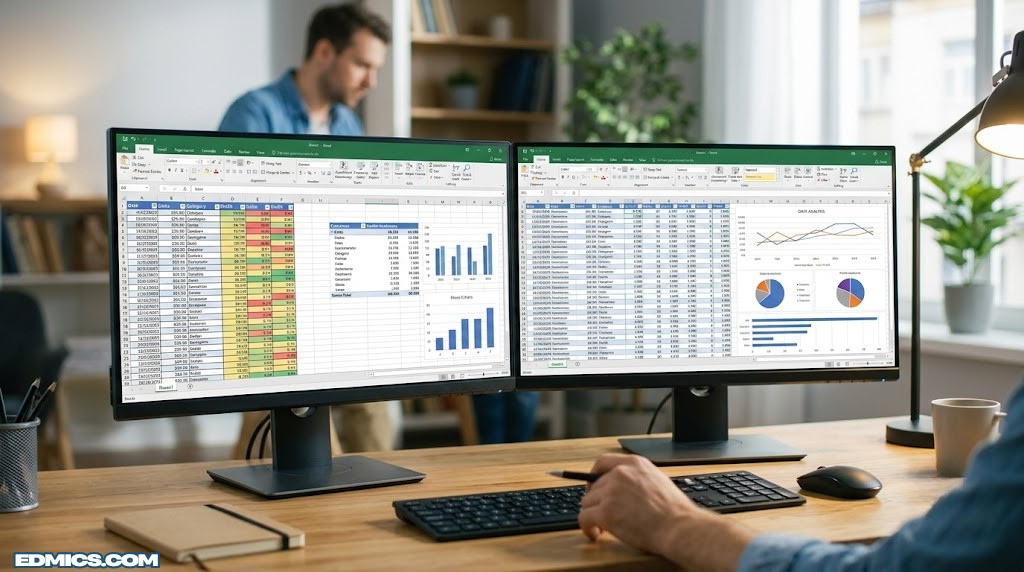
The Definitive Showdown: Microsoft Excel vs. Google Workspace Sheets
An exhaustive, feature-by-feature comparison to help you choose the right data management powerhouse for your business, financial modeling, and collaborative projects. Updated with 2026 insights, AI integrations, and performance benchmarks.

1. Introduction to the Spreadsheet Titans
For decades, the business world has run on grids of rows and columns. When it comes to organizing data, building financial models, or managing project timelines, the conversation invariably boils down to a single debate: Excel vs Google Sheets. While they may appear identical at a passing glance, their underlying architectures, target audiences, and operational philosophies are vastly different.
Microsoft Excel, launched in the late 1980s, is the undisputed heavyweight champion of complex data analysis. It is a robust, desktop-first application deeply ingrained in corporate finance, engineering, and data science. On the other hand, Google Sheets was born in the cloud. It prioritized real-time collaboration and accessibility from day one, disrupting how modern teams share and co-author information.
Choosing between them isn’t simply a matter of preference; it’s a strategic business decision. Your choice impacts your financial planning workflows, hardware requirements, and team communication dynamics. This guide will dissect every critical aspect of these two giants. In 2026, new AI features and hybrid work models have further blurred the lines, making it essential to understand the nuanced differences that drive productivity and data integrity.
2. Interface and User Experience (UX)
The user interface sets the tone for how quickly you can navigate and execute tasks. Microsoft Excel utilizes the “Ribbon” interface, a staple of the Microsoft Office suite. The Ribbon is dense, packed with hundreds of icons, drop-downs, and deeply nested menus. This complexity is necessary to house Excel’s massive feature set, but it presents a steep learning curve for beginners.
Google Sheets takes a minimalist approach. Its interface is clean, airy, and intuitive. Because it operates within a web browser, it intentionally limits visual clutter. The top menu bar contains only the most frequently used tools. For users who only need to execute accounting basics or track simple lists, Sheets feels significantly less intimidating.
Winner: It’s a tie. Google Sheets wins for simplicity and onboarding speed, while Excel wins for power users who rely on quick access to advanced data modeling tools via customizable quick-access toolbars and deep keyboard shortcuts. Moreover, Excel’s focus mode and accessibility features for screen readers are more refined, whereas Sheets offers a consistent browser-based experience across operating systems.

Boost Your Spreadsheet Speed
Mastering shortcuts in Excel or Sheets requires a comfortable setup. Upgrade to an ergonomic keyboard to prevent wrist strain during long data entry sessions.
Shop Keyboards on Amazon3. Core Features & Formula Capabilities
At their core, both platforms calculate data using formulas. Both support the standard mathematical, statistical, and logical functions (SUM, VLOOKUP, IF, INDEX/MATCH). However, the depth of these features varies.
Excel boasts over 500 built-in functions. Recent additions like XLOOKUP and dynamic arrays have revolutionized how financial analysts build models. Furthermore, Excel features robust built-in tools like Power Query (for data transformation) and Power Pivot (for advanced data modeling), which allow users to pull in external SQL databases and manipulate millions of rows without writing a single line of code.
Google Sheets has fewer native functions but counters with highly specialized web-based formulas. The GOOGLEFINANCE function pulls real-time stock data effortlessly. The IMPORTXML and IMPORTHTML functions allow you to scrape data directly from live websites. Furthermore, the QUERY function in Sheets allows you to manipulate data using a SQL-like syntax right inside a cell—a feature Excel lacks natively. In 2026, both platforms support lambda functions and named functions, enabling custom reusable formulas without scripting.
Another key difference lies in array formulas. Excel’s dynamic array spill ranges (introduced in 2020) have made array handling intuitive, while Sheets uses ARRAYFORMULA which requires manual wrapping. For financial analysts building sensitivity tables, Excel’s data tables and scenario manager remain unmatched, whereas Sheets relies on third-party add-ons for similar depth.
4. Data Processing & Performance
This is where the divergence between desktop architecture and browser architecture becomes glaringly obvious. When you are doing heavy-duty wealth management modeling or analyzing big data sets, processing power is everything.
Microsoft Excel: A single Excel worksheet can hold 1,048,576 rows and 16,384 columns. Because it runs locally on your machine, it leverages your computer’s RAM and CPU directly. If you have a powerful machine, Excel can chew through massive datasets, run complex Monte Carlo simulations, and manage heavy pivot tables with relative ease. With the 64-bit version of Excel, memory limitations are virtually gone for most business use cases.
Google Sheets: Sheets has a hard limit of 10 million cells per workbook. While this sounds like a lot, it is reached quickly if you have multiple tabs with substantial row counts. More importantly, because it runs in a web browser, performance degrades significantly as the file size grows. Large Sheets can become laggy, slow to load, and unresponsive. However, Google has introduced “BigQuery connected sheets” which allow analysis of billions of rows in BigQuery while keeping the interface responsive, but this requires a paid Google Cloud connection.
| Metric | Microsoft Excel | Google Sheets |
|---|---|---|
| Max Rows per Sheet | 1,048,576 | Dependent on 10M cell limit |
| Max Cells per Workbook | Virtually unlimited (RAM dependent) | 10,000,000 cells |
| Processing Environment | Local Hardware (CPU/RAM) | Web Browser / Cloud Servers |
| Big Data Handling | Excellent (Power Query) | Poor (Requires BigQuery integration) |

Need to run massive Excel models?
Don’t let your hardware bottleneck your data analysis. Check out our recommendations for the best laptops for finance that can handle heavy Excel processing without breaking a sweat.
View Laptops on Amazon5. Collaboration & Real-Time Co-authoring
If Excel is the king of data processing, Google Sheets is the undisputed master of collaboration. Google pioneered real-time co-authoring. Multiple users can be in the same Sheet simultaneously, and you can see exactly which cell your colleague is editing in real-time, represented by color-coded cursors. There are no “file locked for editing” errors.
This seamless collaboration fundamentally shifts how teams work. It reduces reliance on email attachments and eliminates version control nightmares (e.g., Budget_Final_v3_ActualFinal.xlsx). To understand why this shift is vital, consider the limitations of email communication for file sharing. Additionally, Sheets offers built-in chat and commenting features with @mentions that notify collaborators via email, creating an integrated workflow.
Microsoft has worked aggressively to close this gap via Excel for Web and OneDrive integration. Co-authoring in Excel is now possible and functional, but it still feels slightly clunkier compared to the native, frictionless experience of Google Workspace. Occasionally, syncing conflicts arise in Excel when users attempt to execute heavy macro functions while co-authoring. For teams that require version history and rollback, both platforms offer granular version control, though Sheets’ version history is more intuitive for non-technical users.
6. Cloud Integration & File Accessibility
Both applications serve as the cornerstone of their respective broader ecosystems: Microsoft 365 and Google Workspace.
Google Sheets integrates flawlessly with Google Forms, Google Docs, and Google Slides. If you create a chart in Sheets and paste it into Slides, you can update it with a single click if the source data changes. Furthermore, because files live in Google Drive, they are accessible from any device, anywhere, without installing software. Google Drive’s search capabilities and OCR on scanned PDFs add another layer of utility.
Excel integrates tightly with the Microsoft stack: Word, PowerPoint, Teams, and SharePoint. For enterprise environments already embedded in the Microsoft ecosystem, this integration is essential. The desktop version of Excel syncs to OneDrive, allowing cloud backup, but to get the full feature set, the user must have the desktop application installed. Microsoft Teams integration allows real-time collaboration with versioning and compliance logging — a key advantage for regulated industries.

Take Your Meetings Offline in Style
Even with the best cloud tools, sometimes you need to present data in person. Organize your printouts and notes with one of the best leather padfolios.
Upgrade Your Professional Gear7. Automation: VBA vs. Apps Script
When standard formulas aren’t enough, power users turn to scripting. Automation is one of the ten best tips to improve business efficiency.
Excel uses VBA (Visual Basic for Applications). VBA is incredibly powerful. It can interact directly with the Windows operating system, control other Microsoft Office applications, automate local file creation, and run highly complex, looping algorithms. However, VBA is an aging language, and macros written in VBA cannot run on Excel for Web or easily on Mac operating systems without modification. In 2026, Microsoft is pushing Office Scripts (TypeScript based) for web automation, but VBA remains dominant for desktop heavy lifting.
Google Sheets uses Google Apps Script. Apps Script is based on JavaScript—one of the most popular and modern programming languages in the world. This makes it easier for modern developers to learn and implement. Apps Script excels at web-based automation: sending automated emails via Gmail based on a cell trigger, pushing data to webhooks, or interacting with third-party APIs. However, it lacks the raw, local hardware computing power of VBA. For most small to medium business automations, Apps Script is faster to develop and deploy.
8. Data Visualization & Charting
Presenting data clearly is just as important as calculating it correctly. When you prepare a cash flow statement for board members, the charts need to be impeccable.
Excel is vastly superior in charting capabilities. It offers a massive array of chart types—from basic bars and lines to complex waterfall charts, surface charts, and 3D geospatial maps. The formatting options are practically limitless; you can adjust the exact pixel padding of a legend, the gradient fill of a specific data point, and the specific angle of axis text. Excel also supports “People Graph” and “Funnel Chart” which are invaluable for HR and sales dashboards.
Google Sheets charts are clean, modern, and aesthetically pleasing by default, but they lack deep customization. You cannot adjust the minutiae of the chart elements as you can in Excel. For quick, internal dashboards, Sheets is adequate. For publication-ready financial reports, Excel is required. However, Sheets offers “explore” functionality — an AI-driven insights tool that automatically suggests charts and pivot tables based on your data, which is a time-saver for beginners.
9. Security, Compliance & Data Protection
Data security is a paramount concern, especially when dealing with price-sensitive information.
Microsoft provides enterprise-grade security within the Office 365 environment, including Information Rights Management (IRM), which allows administrators to prevent files from being printed, forwarded, or copied. Furthermore, because Excel files can be saved locally on internal company servers, organizations with strict compliance requirements (like defense contractors or healthcare providers under HIPAA) often prefer Excel. You can completely air-gap a machine running Excel. Microsoft also offers Advanced Threat Protection and Data Loss Prevention policies that integrate seamlessly with Excel.
Google Workspace also offers robust security, including two-factor authentication, advanced admin controls, and SOC 2 / HIPAA compliance capabilities. However, because the data inherently lives in the cloud, some highly regulated industries remain hesitant. The ease of sharing a Google Sheet via a link can also lead to accidental data exposure if link permissions (“Anyone with the link can view”) are mishandled by employees. Google’s “Trust Rules” and “Context-Aware Access” help mitigate this but require enterprise plans.
Verify Your Spreadsheet Math
Never blindly trust a complex spreadsheet model without spot-checking your formulas. Do it right with one of the best financial calculators on the market.
View on Amazon10. Pricing and Licensing Models
Budget constraints often dictate software choices, especially for startups deciding on an accounting equation approach to their IT spend.
- Google Sheets: Completely free for personal use with a standard Google account (includes 15GB of Drive storage). For businesses, it is bundled with Google Workspace, which typically ranges from $6 to $18 per user, per month, providing custom domains, admin controls, and increased cloud storage. The free version includes all core features, making it ideal for freelancers and non-profits.
- Microsoft Excel: Microsoft offers Excel for Web for free, but it is a severely stripped-down version. To get the true Excel desktop app, you must subscribe to Microsoft 365. Personal plans start around $7/month, while business plans range from $6 to $22 per user, per month. Microsoft also still offers one-time purchase standalone licenses (Office Home & Student 2024), though they push heavily toward the subscription model. For enterprises, volume licensing and E3/E5 plans include advanced compliance and analytics.
Hidden costs: Excel power users might need additional Power BI licenses for advanced dashboards; Google Sheets users might need BigQuery credits for large data sets. Both offer educational discounts and free tiers for schools and non-profits.
11. Best Use Cases: Which Should You Choose?
The choice between the two relies entirely on the decision-making frameworks you apply to your operational needs. Let’s break down the ideal scenarios for each.
When to Choose Microsoft Excel
- Complex Financial Modeling: Investment banking, private equity, and advanced corporate finance rely on Excel. Understanding balance sheets via complex macros is an Excel-first workflow.
- Massive Datasets: If your CSV file has 500,000 rows, Google Sheets will crash; Excel will process it.
- Legacy Systems: If your company relies heavily on old VBA macros or integrations with legacy local databases.
- Scientific Research: Excel’s advanced statistical add-ins and solver tools are preferred in engineering and research labs.
When to Choose Google Sheets
- Project Management & Tracking: Creating a shared to-do list, content calendar, or lightweight CRM for a remote team.
- Startups & Small Businesses: The low barrier to entry, free tier, and easy integration with Gmail make it ideal for lean operations utilizing cloud accounting software.
- Live Data Gathering: Connecting Google Forms directly to a Sheet for instant survey data aggregation.
- Cross-Platform Teams: Teams using a mix of Windows, Mac, Linux, and Chromebooks will benefit from Sheets’ browser consistency.

Organize Your Workspace
Software keeps your data clean, but physical clutter ruins productivity. Streamline your office with the best desk organizers.
Shop Organizers on Amazon12. The Future: AI and Copilot Integrations
The spreadsheet landscape is currently undergoing its biggest revolution since the invention of the graphical user interface: the integration of Generative AI.
Microsoft has integrated Copilot into Excel. This allows users to use natural language to analyze data. Instead of writing a complex pivot table, a user can type, “Show me the quarterly sales breakdown by region and highlight the lowest performers,” and Copilot will generate the tables, charts, and conditional formatting instantly. Copilot can also write complex formulas, suggest what-if analyses, and summarize trends in plain English.
Google is fighting back with Gemini for Google Workspace. In Sheets, you can use prompts like “Create a project management tracker for a marketing campaign,” and the AI will build the structural columns, drop-downs, and formatting for you automatically. Gemini also assists in cleaning messy data, detecting anomalies, and generating custom charts. Both AI systems are rapidly evolving, and by 2026, they have reduced the need for manual formula memorization by over 50% for average users.
Key gap analysis: Excel’s Copilot is more advanced when dealing with structured financial models and macros, while Gemini excels at web data integration and cross-app workflows with Gmail and Calendar.
13. Add-ons, Extensions & Ecosystem
The third-party ecosystem can make or break a platform’s longevity. Excel has the Microsoft AppSource with thousands of integrations ranging from statistical analysis (Analyse-it) to ERP connectors. Google Sheets has the Google Workspace Marketplace, which offers add-ons like Yet Another Mail Merge, Supermetrics (for marketing data), and Coefficient (real-time CRM sync). For most small businesses, Sheets’ add-ons are cheaper and easier to install, whereas enterprise Excel add-ons are often more powerful but come with steep licensing costs.
Notably, both platforms support API connections: Excel via Power Query and VBA, Sheets via Apps Script and REST APIs. For teams deeply integrated with Salesforce, HubSpot, or Jira, Sheets offers more out-of-the-box connectors, while Excel requires intermediate technical skills.
14. Offline Access & Mobile Apps
Google Sheets allows offline editing via Chrome browser extension or the mobile app. Users can enable offline mode for specific files; changes sync when reconnected. Excel’s desktop app has always been fully offline, and the mobile app also supports offline editing. However, Excel for Web requires internet. For frequent travelers or remote areas, Excel’s robust offline capabilities (including full macro execution) give it an edge. Sheets offline mode is more limited: it cannot run Apps Script triggers offline and has a smaller cache limit.
Mobile apps: Both offer iOS and Android apps with touch-optimized interfaces. Excel’s mobile app includes a “scan to table” feature using camera OCR, while Sheets mobile has better integration with Google Drive scanning. For heavy formula editing, the desktop versions remain superior.
15. Import/Export Capabilities & Interoperability
Both tools support a wide range of formats: .xlsx, .csv, .tsv, .ods. Excel can import from PDF, XML, JSON, and connect directly to SQL Server, Oracle, and SAP. Google Sheets can import from HTML, RSS feeds, and Google BigQuery. For daily operations, Sheets’ ability to automatically sync with external databases using Google Apps Script on a time-driven trigger is a hidden gem. Excel’s Power Query is more robust for ETL (extract, transform, load) but has a steeper learning curve. When moving files between the two, formatting and complex formulas often break — a major pain point for mixed teams.
16. Advanced Analytics: Python, R, and Big Data
A major gap in the original comparison: advanced statistical programming. Excel now supports Python within cells (Preview since 2023, general availability 2025). This allows users to run pandas, matplotlib, and scikit-learn directly alongside Excel formulas — a game changer for data scientists who need to share results with business stakeholders. Google Sheets does not support Python natively, but you can connect to Colab notebooks or use BigQuery ML. For R enthusiasts, both platforms require add-ons or external connectors. Ultimately, if your workflow involves statistical modeling or machine learning, Excel’s native Python integration makes it the future-proof choice. Sheets is better suited for lightweight A/B testing and Google Analytics imports.
Frequently Asked Questions
Can I open an Excel file in Google Sheets?
Yes. Google Sheets can natively open, edit, and save .xlsx files without needing to convert them first. However, highly complex macros or unsupported charts from the Excel file may not render or function correctly in Sheets.
Which is better for accounting?
For heavy, corporate double-entry bookkeeping involving massive ledgers, Excel is superior due to processing power. However, for a small business tracking simple expenses, Google Sheets is often more convenient.
Does Google Sheets have Pivot Tables?
Yes, Google Sheets fully supports Pivot Tables. While the interface is slightly different from Excel, the core functionality of summarizing and analyzing large datasets is present.
Is Google Sheets really free?
Yes, for individuals using a standard Google account, Google Sheets is 100% free. Businesses requiring custom domains and advanced admin controls must pay for Google Workspace.
What is the Google Sheets equivalent to VBA?
Google Apps Script is the equivalent to Excel’s VBA. It is based on JavaScript and is used to automate tasks, create custom menus, and connect to third-party web services.
Which program is safer for confidential data?
Both offer enterprise-grade encryption. However, Excel allows for local storage on offline, air-gapped computers, which gives it the edge for maximum security environments. Google Sheets data is always stored in the cloud.
Can multiple people edit an Excel file at the same time?
Yes, if the Excel file is saved to OneDrive or SharePoint and users are utilizing Microsoft 365, co-authoring is possible. However, Google Sheets still provides a smoother, faster real-time collaboration experience.
How many rows can Google Sheets handle?
Google Sheets does not have a strict row limit, but rather a total cell limit. A single Google Sheet workbook can hold up to 10 million cells across all its tabs.
Does Excel have an equivalent to the GOOGLEFINANCE function?
Yes, recent versions of Microsoft 365 Excel include “Data Types,” specifically the “Stocks” data type, which allows users to pull real-time stock prices, market caps, and historical data directly into cells.
What is the best way to transition from Excel to Sheets?
Start by uploading .xlsx files to Google Drive and opening them in Sheets. Use the “Help > Keyboard shortcuts” to learn Sheets equivalents. Be prepared to rewrite VBA macros as Apps Script, or use third-party tools like Sheetcast for complex conversion.
Conclusion & Final Verdict
The battle of Excel vs Google Sheets does not end with a single, universal winner. The “best” software depends entirely on your specific workflow.
If your daily tasks involve processing hundreds of thousands of rows of data, executing complex VBA macros, and building intricate financial models, Microsoft Excel remains the undisputed king. It is a desktop powerhouse that no web application can currently match in sheer computational force. With its new Python integration and Copilot AI, Excel is evolving to stay ahead for power users.
Conversely, if your priority is seamless team collaboration, cross-platform accessibility, integrating with web services, and managing lightweight data tracking for agile teams, Google Sheets is the superior choice. Its friction-free sharing and cloud-first architecture make it indispensable for modern, distributed workflows. Gemini AI and the robust add-on ecosystem make it a strong contender for startups and education.
Ultimately, many modern professionals choose not to choose. Leveraging the processing power of Excel for heavy lifting and transferring the summarized data to Google Sheets for team presentation and collaboration is a highly effective hybrid strategy. Whichever you choose, mastering your spreadsheet software is one of the best investments you can make in your professional career.